
The era of the compact “puck” speaker has come to an end. Google officially ended production of the Nest Mini and Nest Audio in June 2026. While these devices are no longer being manufactured, Google has committed to providing ongoing security patches and customer support for existing units.
Whether you are preparing to sell your legacy hardware or troubleshooting a connectivity issue, a factory reset is the only way to completely wipe your personal data and account credentials from the device. It is important to note that a hardware factory reset cannot be initiated through the Google Home app or via voice commands; it requires physical interaction with the device.
Identify Your Model
Before starting the reset, you must identify which version of the speaker you own, as the physical steps differ significantly between generations.
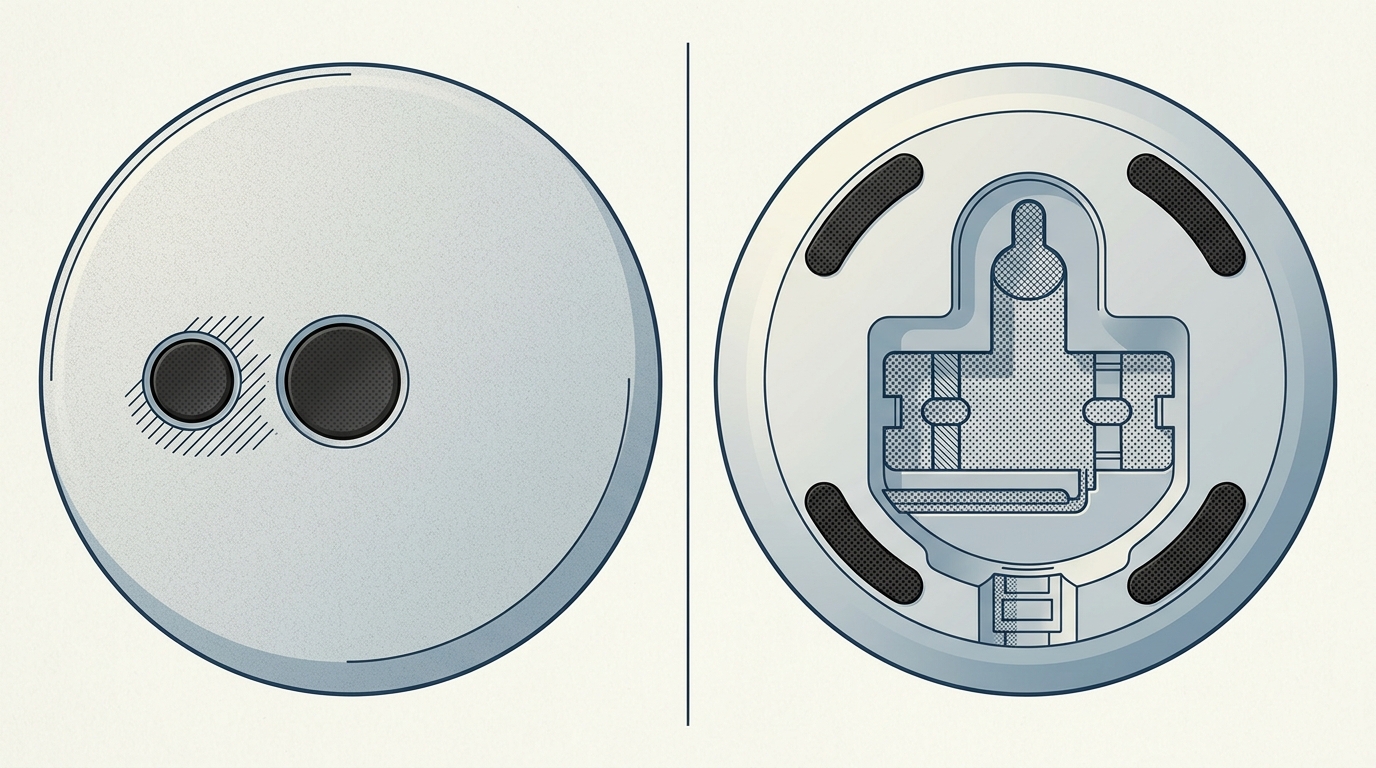
The easiest way to tell the difference is to flip the device over. The first-generation Google Home Mini has a smooth plastic bottom with a small, circular reset button located near the power cord entry. The second-generation Google Nest Mini features a built-in wall-mount screw slot and does not have a dedicated reset button on the base.
How to Reset Google Home Mini (1st Gen)
If your device lacks a wall-mount slot on the bottom, follow these steps for the original Home Mini:
Locate the circular reset button on the bottom of the device, positioned just below the power cord. Press and hold this button for approximately 15 seconds. You will hear the Google Assistant confirm that it is resetting the device. Continue holding until the process is complete and the lights on top of the speaker indicate it has returned to its original state.
How to Reset Google Nest Mini (2nd Gen)
If your device has a wall-mount screw slot, it is a Nest Mini. This model uses a touch-based reset method rather than a dedicated button:
1. Slide the physical microphone switch on the side of the device to the “off” position. The lights on the top of the speaker will turn orange to confirm the mic is muted.
2. Press and hold the center of the top of the unit, where the LED lights are located.
3. Hold for about 15 seconds. About five seconds into the hold, the Assistant will warn you that you are about to reset the device.
4. Continue holding until you hear a confirmation tone, signaling the factory reset is complete.
Once the reset is finished, the device will no longer appear as a connected unit in your Google Home app, though you may still need to manually “remove” the defunct entry from your home’s device list within the app to clean up your interface.
While the Mini and Audio lines have been discontinued, these legacy devices remain functional for standard assistant tasks. Google’s 2026 support commitment ensures that even as the hardware disappears from retail shelves, the millions of units currently in homes will remain secure and operational for the foreseeable future.
