

Moving Google Authenticator to a new device has become significantly more streamlined with the 2026 rollout of Version 7.0, which solidifies cloud-based synchronization as the primary migration path. While the manual QR-code transfer method remains available for high-security environments, the transition now emphasizes a “Privacy Screen” biometric layer to protect codes during the move.
There are two primary ways to set up the app on a new phone: using Google’s account-based Cloud Sync or performing a manual offline export. Each method carries different security implications regarding how your two-factor authentication (2FA) tokens are stored and accessed.
Method 1: Cloud Sync (Account-Based Migration)
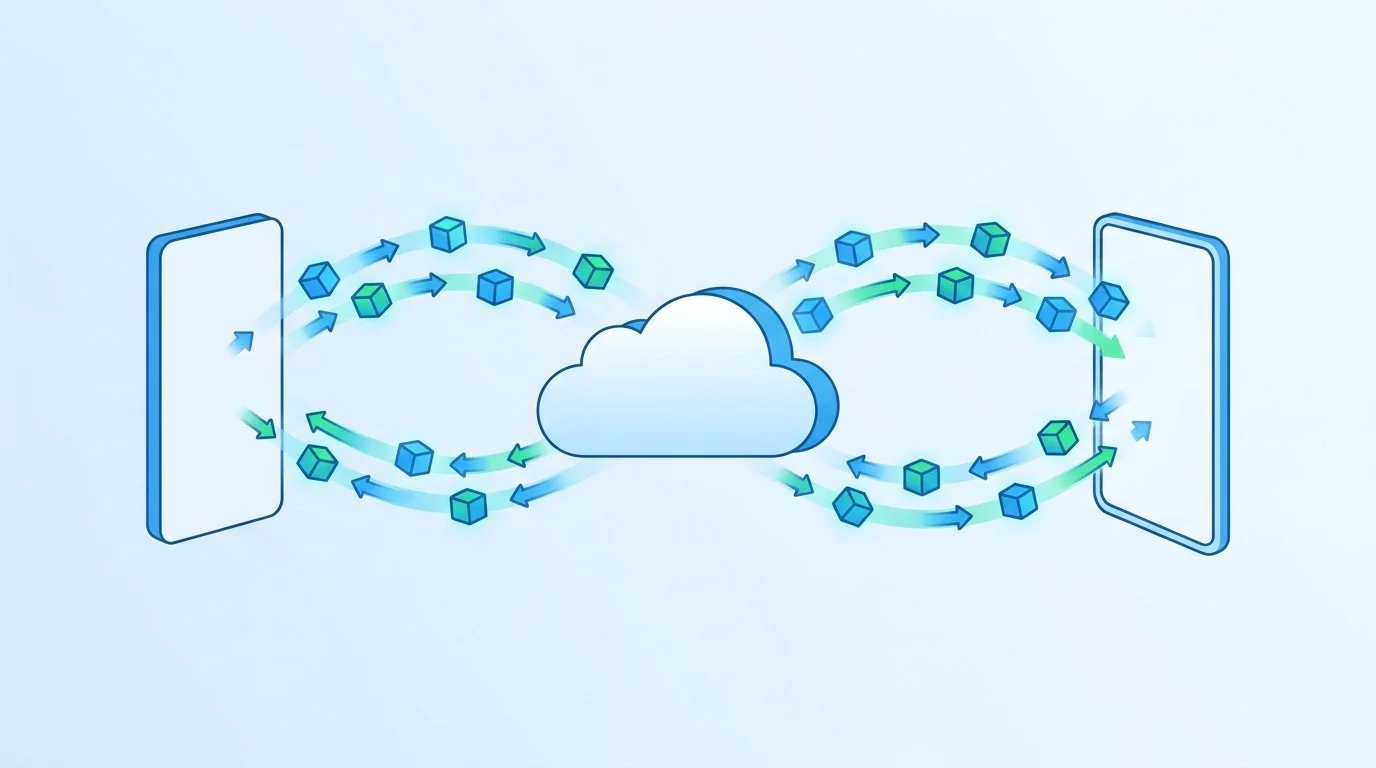
As of late 2026, Cloud Sync is the standard setup for most users. This feature allows your 2FA codes to be backed up to your Google Account, making them accessible on any device where you are signed in. This is particularly useful for cross-platform users, as codes can now sync seamlessly between Android and iOS devices.
To use this method, ensure your app is updated to at least Version 6.0 on Android or Version 4.0 on iOS. Once you sign into your Google Account within the Authenticator app on the new phone, your codes will populate automatically. Google reports that these codes are encrypted both in transit and at rest. However, technical reviews in 2026 have noted that unlike competitors such as Bitwarden, Google does not explicitly label this cloud vault as “end-to-end encrypted,” meaning a total compromise of a Google Account could theoretically grant access to the synced tokens unless additional account protections are active.
Method 2: Manual Export (Offline Transfer)
If you prefer not to store your 2FA tokens in the cloud, or if you are moving to a device without a Google Account sign-in, the manual transfer method is required. This process requires you to have both the old and new devices physically present.
- On the old phone, open Google Authenticator and select “Transfer accounts” from the menu, then “Export accounts.”
- Select the accounts you wish to move; the app will generate a series of QR codes.
- On the new phone, choose “Import accounts” and scan the QR codes displayed on the old device.
This method ensures that the tokens never touch Google’s servers, providing a “cold storage” style of security. The primary risk of this approach is device loss; if the original phone is lost or broken before a manual export is performed and Cloud Sync is disabled, users must rely on individual service recovery codes to regain access to their accounts.
Key Changes in Version 7.0 and 2026 Standards
Recent updates have introduced two major functional changes to the user experience. First is the “Privacy Screen” feature, which has become a 2026 standard for the app. This feature forces a biometric lock (Face ID or fingerprint) every time the app is opened, even if the handset itself is already unlocked. This prevents unauthorized access to codes during the migration process or in the event a phone is snatched while in use.
Secondly, Google has officially removed the manual “Time Correction for Codes” menu in Version 7.0. Previously, users often had to manually sync the app’s internal clock with Google’s servers to fix codes that weren’t working. The app now relies exclusively on the mobile operating system’s time synchronization. If codes are failing to authenticate, users must now ensure that their phone’s system settings are set to “Set time automatically.”
For official troubleshooting and version-specific requirements, users can refer to Google Account Help for detailed device compatibility lists.
