
Updated October 13, 2026. A great computer monitor makes everyday work easier to see, not merely more impressive on a specification sheet. For a single versatile desktop display, our research-based top pick is the Dell UltraSharp U3225QE: a 31.5-inch 4K panel, smooth 120Hz desktop operation, extensive Thunderbolt 4 docking and useful KVM switching. That does not make it the right choice for every budget. A 27-inch 4K Dell P2725QE is more practical for many home offices, the ASUS ProArt PA279CRV is better value for calibrated SDR design work, and a 34-inch LG ultrawide can replace two narrower screens.
Research disclosure: AsumeTech has not physically tested these monitors. We verified model-specific manufacturer specifications, reviewed independent testing where available and evaluated documented tradeoffs. Editorial scores are our research judgments, not measured laboratory scores or claims of direct ownership. Some models launched before 2026 but remain candidates in this 2026 buying guide; exact prices, promotions and regional availability change.
This is a general computer-monitor buying guide for office, productivity, design, coding, ultrawide and home use. It is deliberately distinct from our specialist gaming-monitor and OLED gaming-monitor coverage: we do not rank 240Hz response time above text clarity, ergonomic comfort and docking for ordinary work.
Best computer monitors of 2026: quick recommendations
- Dell UltraSharp U3225QE — Best overall 32-inch productivity monitor (9.2/10 research-only editorial score)
- Dell Pro 27 Plus P2725QE — Best practical 27-inch 4K office monitor (8.9/10 research-only editorial score)
- ASUS ProArt Display PA279CRV — Best value 4K monitor for photo and design work (8.8/10 research-only editorial score)
- BenQ PD2730S — Best 27-inch 5K creator display (9.0/10 research-only editorial score)
- LG UltraWide 34WQ75C-B — Best ultrawide for multitasking without two bezels (8.5/10 research-only editorial score)
- HP Series 7 Pro 727pu (8J9E6UT) — Best 27-inch Thunderbolt workstation dock (8.7/10 research-only editorial score)
- EIZO FlexScan EV2740X — Best premium long-hours office display (8.6/10 research-only editorial score)
- Dell S2725DS — Best budget 27-inch QHD home monitor (8.2/10 research-only editorial score)
Comparison table: screen, role and practical tradeoffs
| Product ID | Exact model | Verified display and features | Best use | Score |
|---|---|---|---|---|
| P001 | Dell UltraSharp U3225QE | 31.5-inch 3840 × 2160 enhanced IPS Black; 120Hz; 3,000:1 specified native contrast; Thunderbolt 4 with up to 140W laptop power delivery; KVM and 2.5GbE | Best overall 32-inch productivity monitor | 9.2/10 |
| P002 | Dell Pro 27 Plus P2725QE | 27-inch 3840 × 2160 IPS; 100Hz; 99% sRGB specified; USB-C video and up to 90W power delivery; RJ45 Ethernet and USB hub | Best practical 27-inch 4K office monitor | 8.9/10 |
| P003 | ASUS ProArt Display PA279CRV | 27-inch 3840 × 2160 IPS; 60Hz; manufacturer-rated 99% DCI-P3 and 99% Adobe RGB; Calman Verified; USB-C with 96W power delivery | Best value 4K monitor for photo and design work | 8.8/10 |
| P004 | BenQ PD2730S | 27-inch 5120 × 2880 IPS Black; 60Hz; 218 ppi; 98% P3 and 100% sRGB/Rec.709 specified; Thunderbolt 4 with up to 90W power delivery | Best 27-inch 5K creator display | 9.0/10 |
| P005 | LG UltraWide 34WQ75C-B | 34-inch curved 3440 × 1440 IPS; 21:9 aspect ratio; 60Hz; specified 99% sRGB; USB-C with up to 90W power delivery; RJ45 and KVM | Best ultrawide for multitasking without two bezels | 8.5/10 |
| P006 | HP Series 7 Pro 727pu (8J9E6UT) | 27-inch 2560 × 1440 IPS Black; up to 120Hz; 2,000:1 rated contrast; Thunderbolt 4 with up to 100W laptop power delivery; Ethernet and DisplayPort output | Best 27-inch Thunderbolt workstation dock | 8.7/10 |
| P007 | EIZO FlexScan EV2740X | 27-inch 3840 × 2160 IPS; 60Hz; specified 2,000:1 contrast; USB-C with up to 94W laptop power delivery; Ethernet; Auto EcoView; five-year manufacturer warranty | Best premium long-hours office display | 8.6/10 |
| P008 | Dell S2725DS | 27-inch 2560 × 1440 IPS; 100Hz; specified 99% sRGB; 350-nit rated brightness; two HDMI and one DisplayPort; ergonomic stand and integrated speakers | Best budget 27-inch QHD home monitor | 8.2/10 |
How we selected and scored these monitors
We selected eight exact retail model identifiers with distinct reasons to buy, rather than padding the list with nearly identical refresh-rate variants. Our 100-point research rubric weights text clarity and usable resolution (25%), SDR image/color quality (20%), connectivity and laptop docking (20%), ergonomics and everyday comfort (15%), price-adjusted value (10%), and support, warranty and ownership practicality (10%). We adapt the written verdict to each buyer’s use case: the highest overall score is not the best choice for everyone. Scores within a few tenths are effectively tied given the uncertainty of cross-model evidence.
Manufacturer contrast, brightness, gamut and power figures are rated specifications, not AsumeTech measurements. Independent sources are cited as third-party testing or market context only where they actually tested or evaluated the specific model. We avoid inventing exact 2026 street prices, panel uniformity, response-time numbers or calibrated color errors that we have not independently measured.
P001 — Dell UltraSharp U3225QE: Best overall 32-inch productivity monitor
Research-based editorial score: 9.2/10. Exact model and verified specification: 31.5-inch 3840 × 2160 enhanced IPS Black; 120Hz; 3,000:1 specified native contrast; Thunderbolt 4 with up to 140W laptop power delivery; KVM and 2.5GbE.
What makes it worth considering
The large 4K workspace, unusually rich docking features, smooth desktop scrolling and flexible stand make this the most complete one-screen office hub here. A monitor earns a recommendation only if those capabilities solve a daily problem; a larger number on a specification sheet is not automatically a visible improvement. Compare the screen’s physical size with your viewing distance, available desk depth and whether the included stand can position it at eye level.
Limitations you should know
Premium pricing, no built-in speakers and mediocre fast-motion response. The HDR 600 badge should not be mistaken for convincing full-array HDR: independent tests find poor local dimming. The manufacturer lists 120Hz over supported connections; actual refresh and charging depend on the computer, cable, graphics bandwidth and USB-C power profile. These limitations matter more than a tenth of a point in our editorial score. We recommend checking both the exact product code and the retailer’s return policy, especially for dead pixels, backlight uniformity, USB-C negotiation and shipping damage.
Who should buy this exact monitor?
Knowledge workers, analysts and creators connecting one or two laptops who will use the Thunderbolt dock and KVM regularly. If your work is mostly text and spreadsheets, prioritize font clarity, comfortable scaling and ports. If your work is color-critical, review independent calibration evidence and plan for profiling. A monitor that fits the actual workload will provide more value than a more expensive model chosen only for peak brightness or refresh rate.
How it compares with alternatives
Dell P2725QE if you need a smaller and more affordable USB-C hub; BenQ PD3225U or PD2730S if creator color workflow matters more than 120Hz. The key is to decide whether you need more pixels, a wider canvas, faster motion, stronger color management or a single-cable docking setup. Each choice involves a different cost and desk-space tradeoff.
Verification: Manufacturer’s exact-model product/specification page; independent testing or buying-context reference. The manufacturer source supports the listed hardware details; third-party evidence is not represented as our own hands-on testing.
P002 — Dell Pro 27 Plus P2725QE: Best practical 27-inch 4K office monitor
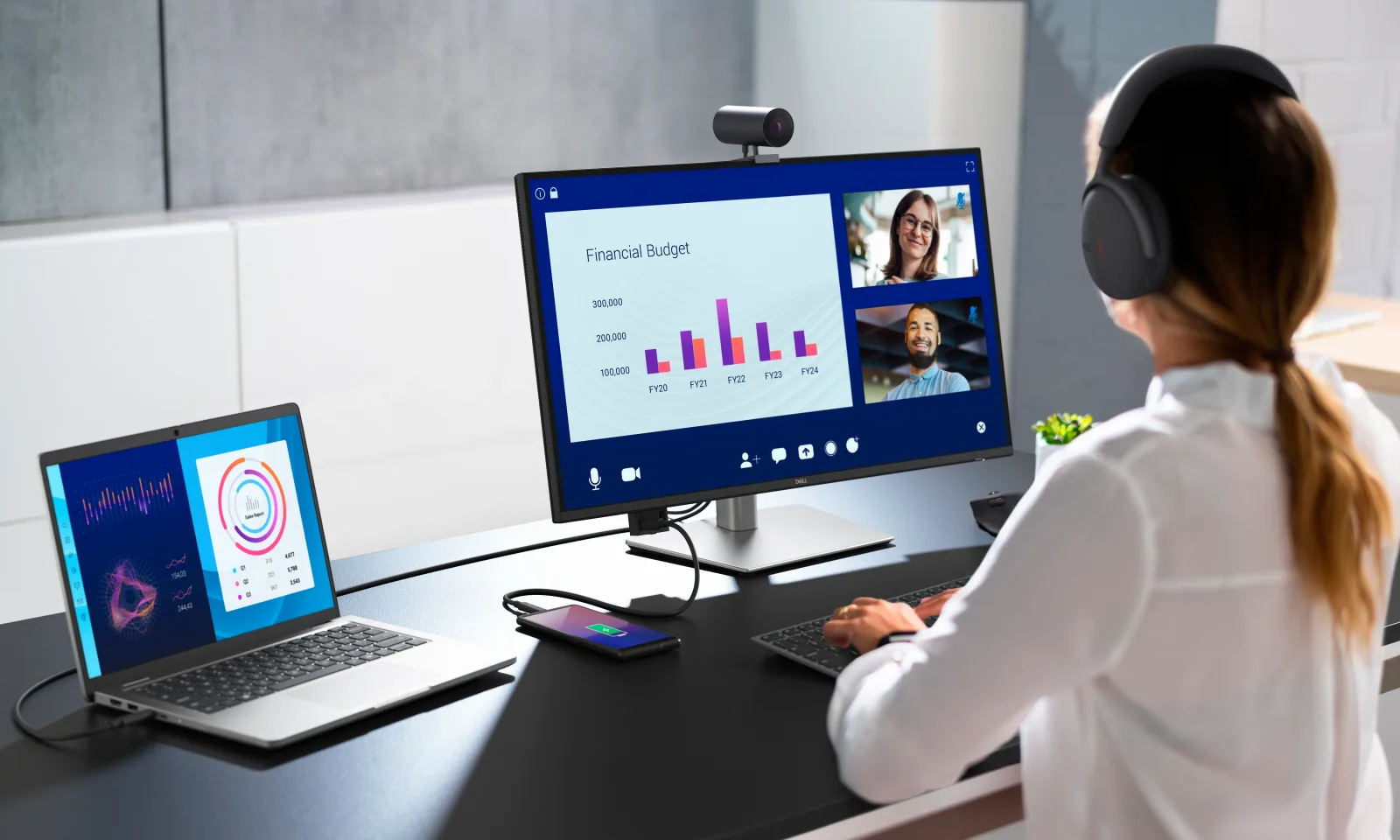
Research-based editorial score: 8.9/10. Exact model and verified specification: 27-inch 3840 × 2160 IPS; 100Hz; 99% sRGB specified; USB-C video and up to 90W power delivery; RJ45 Ethernet and USB hub.
What makes it worth considering
Sharp 163-ppi text, a height/swivel/pivot stand, Ethernet and a single-cable laptop connection hit the everyday office priorities without paying for a luxury 32-inch display. A monitor earns a recommendation only if those capabilities solve a daily problem; a larger number on a specification sheet is not automatically a visible improvement. Compare the screen’s physical size with your viewing distance, available desk depth and whether the included stand can position it at eye level.
Limitations you should know
Standard IPS contrast and 350-nit rated brightness mean dark-room cinema and demanding HDR grading are not strengths. The smaller 27-inch panel requires scaling at 4K for comfortable text. Check exact P2725QE regional suffix and warranty. USB-C video requires a host that supports DisplayPort Alt Mode or an appropriate USB4/Thunderbolt path. These limitations matter more than a tenth of a point in our editorial score. We recommend checking both the exact product code and the retailer’s return policy, especially for dead pixels, backlight uniformity, USB-C negotiation and shipping damage.
Who should buy this exact monitor?
Hybrid workers who want a neat 27-inch dock, clear text, video calls on a separate webcam and two or three document windows. If your work is mostly text and spreadsheets, prioritize font clarity, comfortable scaling and ports. If your work is color-critical, review independent calibration evidence and plan for profiling. A monitor that fits the actual workload will provide more value than a more expensive model chosen only for peak brightness or refresh rate.
How it compares with alternatives
Dell S2725DS for lower cost if 1440p and no USB-C dock are enough; EIZO EV2740X if warranty and eye-comfort features are higher priorities. The key is to decide whether you need more pixels, a wider canvas, faster motion, stronger color management or a single-cable docking setup. Each choice involves a different cost and desk-space tradeoff.
Verification: Manufacturer’s exact-model product/specification page; independent testing or buying-context reference. The manufacturer source supports the listed hardware details; third-party evidence is not represented as our own hands-on testing.
P003 — ASUS ProArt Display PA279CRV: Best value 4K monitor for photo and design work
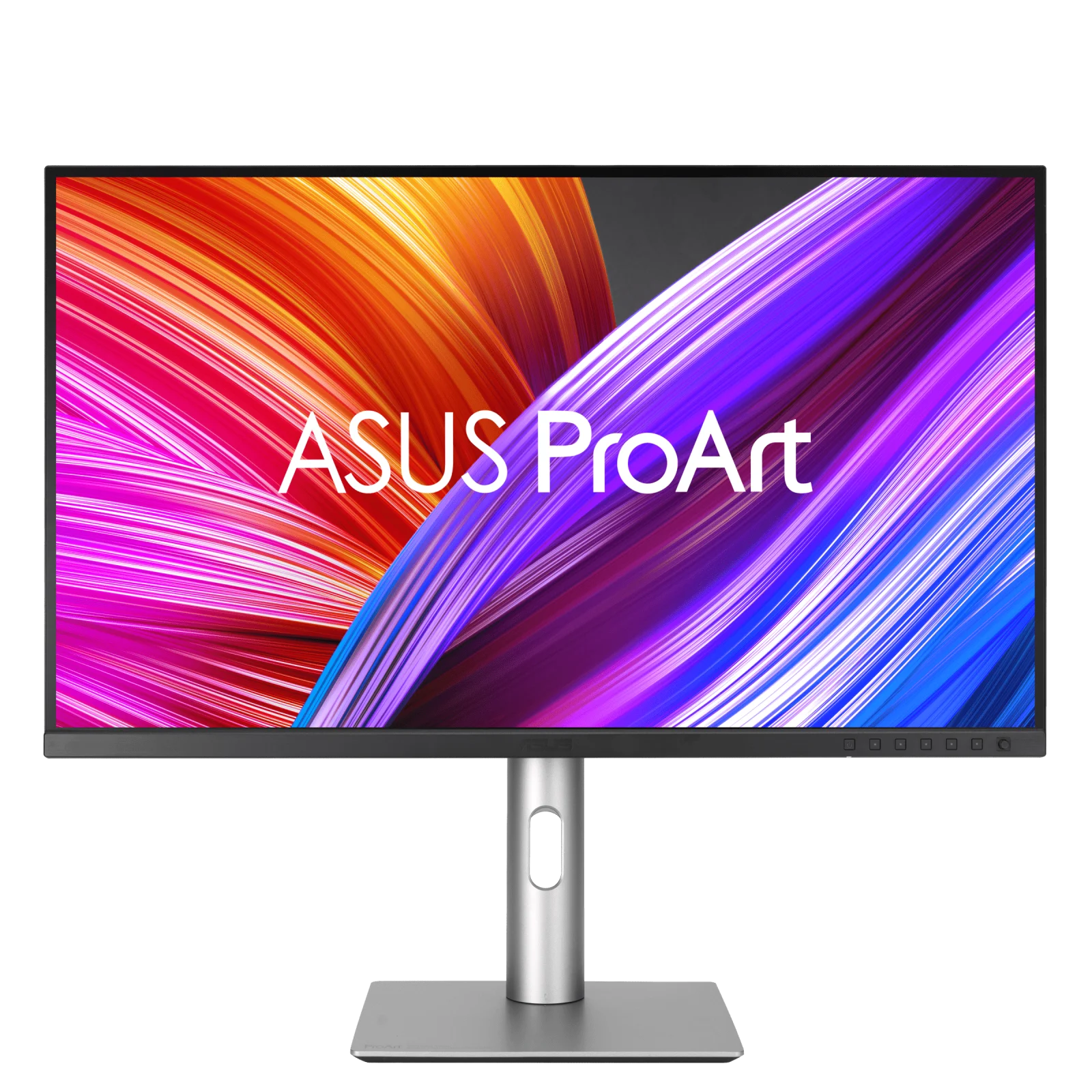
Research-based editorial score: 8.8/10. Exact model and verified specification: 27-inch 3840 × 2160 IPS; 60Hz; manufacturer-rated 99% DCI-P3 and 99% Adobe RGB; Calman Verified; USB-C with 96W power delivery.
What makes it worth considering
Factory color modes and high pixel density offer a sensible entry point to photo, layout and web-design work. RTINGS measured notably accurate sRGB performance and praised the ergonomics. A monitor earns a recommendation only if those capabilities solve a daily problem; a larger number on a specification sheet is not automatically a visible improvement. Compare the screen’s physical size with your viewing distance, available desk depth and whether the included stand can position it at eye level.
Limitations you should know
Weak contrast, unimpressive HDR and blurry fast motion make this a poor substitute for a gaming OLED or HDR mastering display. It has no KVM switch. A factory calibration certificate does not replace periodic profiling for print-critical work; measured accuracy is specific to tested modes and units. These limitations matter more than a tenth of a point in our editorial score. We recommend checking both the exact product code and the retailer’s return policy, especially for dead pixels, backlight uniformity, USB-C negotiation and shipping damage.
Who should buy this exact monitor?
Photographers, designers and editors who need credible out-of-box SDR color modes but cannot justify a high-end reference display. If your work is mostly text and spreadsheets, prioritize font clarity, comfortable scaling and ports. If your work is color-critical, review independent calibration evidence and plan for profiling. A monitor that fits the actual workload will provide more value than a more expensive model chosen only for peak brightness or refresh rate.
How it compares with alternatives
BenQ PD2730S for 5K text density and Mac-friendly color workflow; Dell U3225QE for a more versatile high-refresh office hub. The key is to decide whether you need more pixels, a wider canvas, faster motion, stronger color management or a single-cable docking setup. Each choice involves a different cost and desk-space tradeoff.
Verification: Manufacturer’s exact-model product/specification page; independent testing or buying-context reference. The manufacturer source supports the listed hardware details; third-party evidence is not represented as our own hands-on testing.
P004 — BenQ PD2730S: Best 27-inch 5K creator display
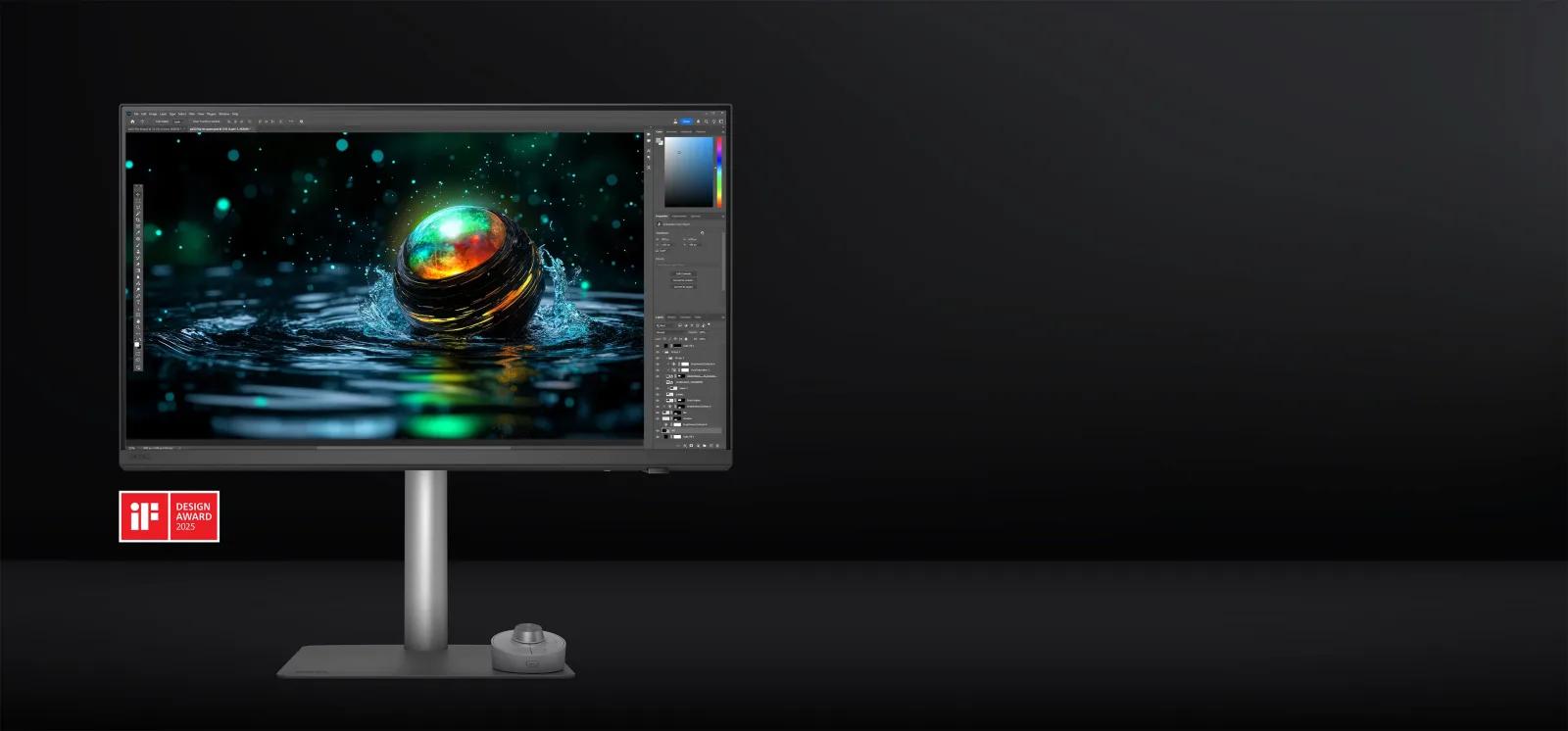
Research-based editorial score: 9.0/10. Exact model and verified specification: 27-inch 5120 × 2880 IPS Black; 60Hz; 218 ppi; 98% P3 and 100% sRGB/Rec.709 specified; Thunderbolt 4 with up to 90W power delivery.
What makes it worth considering
At 218 pixels per inch, 5K provides exceptionally fine interface text and detailed still-image previews at useful scaling. The creator-oriented color presets, KVM and Thunderbolt connectivity suit a Mac or Windows editing desk. A monitor earns a recommendation only if those capabilities solve a daily problem; a larger number on a specification sheet is not automatically a visible improvement. Compare the screen’s physical size with your viewing distance, available desk depth and whether the included stand can position it at eye level.
Limitations you should know
Expensive, limited to 60Hz, and a 400-nit DisplayHDR 400 label does not make it a true high-dynamic-range mastering display. Check regional availability and whether the host supports native 5K output at the desired scaling and color depth. These limitations matter more than a tenth of a point in our editorial score. We recommend checking both the exact product code and the retailer’s return policy, especially for dead pixels, backlight uniformity, USB-C negotiation and shipping damage.
Who should buy this exact monitor?
Mac-based designers, photographers and typography-focused professionals who care more about 5K sharpness and predictable color workflows than speed. If your work is mostly text and spreadsheets, prioritize font clarity, comfortable scaling and ports. If your work is color-critical, review independent calibration evidence and plan for profiling. A monitor that fits the actual workload will provide more value than a more expensive model chosen only for peak brightness or refresh rate.
How it compares with alternatives
ASUS PA279CRV for a less costly 4K design screen; Dell U3225QE for 32-inch 4K, 120Hz and stronger docking. The key is to decide whether you need more pixels, a wider canvas, faster motion, stronger color management or a single-cable docking setup. Each choice involves a different cost and desk-space tradeoff.
Verification: Manufacturer’s exact-model product/specification page; independent testing or buying-context reference. The manufacturer source supports the listed hardware details; third-party evidence is not represented as our own hands-on testing.
P005 — LG UltraWide 34WQ75C-B: Best ultrawide for multitasking without two bezels
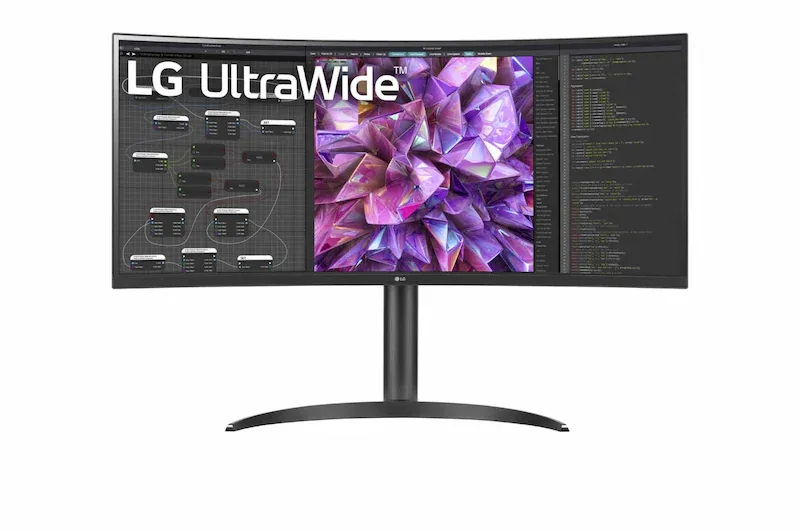
Research-based editorial score: 8.5/10. Exact model and verified specification: 34-inch curved 3440 × 1440 IPS; 21:9 aspect ratio; 60Hz; specified 99% sRGB; USB-C with up to 90W power delivery; RJ45 and KVM.
What makes it worth considering
One continuous wide canvas is excellent for a browser plus spreadsheet, timeline editing or two large documents. The USB-C dock, network port and KVM reduce cable clutter. A monitor earns a recommendation only if those capabilities solve a daily problem; a larger number on a specification sheet is not automatically a visible improvement. Compare the screen’s physical size with your viewing distance, available desk depth and whether the included stand can position it at eye level.
Limitations you should know
The 3440 × 1440 resolution is not as sharp as 27-inch 4K, and 60Hz plus 300-nit rated brightness are modest. The curved 21:9 shape may not suit portrait documents or very small desks. Confirm the exact 34WQ75C-B model; older LG 34WN80C-B is a different monitor with different docking features. These limitations matter more than a tenth of a point in our editorial score. We recommend checking both the exact product code and the retailer’s return policy, especially for dead pixels, backlight uniformity, USB-C negotiation and shipping damage.
Who should buy this exact monitor?
Financial analysts, researchers, video editors and remote workers who would otherwise place two ordinary monitors side by side. If your work is mostly text and spreadsheets, prioritize font clarity, comfortable scaling and ports. If your work is color-critical, review independent calibration evidence and plan for profiling. A monitor that fits the actual workload will provide more value than a more expensive model chosen only for peak brightness or refresh rate.
How it compares with alternatives
Dell U3225QE for sharper 4K text and a taller conventional workspace; HP 727pu if a 27-inch dock fits the desk better. The key is to decide whether you need more pixels, a wider canvas, faster motion, stronger color management or a single-cable docking setup. Each choice involves a different cost and desk-space tradeoff.
Verification: Manufacturer’s exact-model product/specification page; independent testing or buying-context reference. The manufacturer source supports the listed hardware details; third-party evidence is not represented as our own hands-on testing.
P006 — HP Series 7 Pro 727pu (8J9E6UT): Best 27-inch Thunderbolt workstation dock
Research-based editorial score: 8.7/10. Exact model and verified specification: 27-inch 2560 × 1440 IPS Black; up to 120Hz; 2,000:1 rated contrast; Thunderbolt 4 with up to 100W laptop power delivery; Ethernet and DisplayPort output.
What makes it worth considering
Thunderbolt 4, daisy-chain output, plentiful USB ports and strong ergonomic adjustment make it an attractive desk hub for multiple peripherals. Its 120Hz QHD desktop feels smoother than typical 60Hz office panels. A monitor earns a recommendation only if those capabilities solve a daily problem; a larger number on a specification sheet is not automatically a visible improvement. Compare the screen’s physical size with your viewing distance, available desk depth and whether the included stand can position it at eye level.
Limitations you should know
At 27 inches, QHD text is visibly less dense than 4K; expensive docking features are wasted if you only connect one HDMI desktop. HP lists model 727pu and SKU 8J9E6UT; do not confuse with other Series 7 Pro 27-inch panels that lack Thunderbolt. These limitations matter more than a tenth of a point in our editorial score. We recommend checking both the exact product code and the retailer’s return policy, especially for dead pixels, backlight uniformity, USB-C negotiation and shipping damage.
Who should buy this exact monitor?
Corporate users and hybrid teams prioritizing fast laptop docking, network connectivity and peripheral management. If your work is mostly text and spreadsheets, prioritize font clarity, comfortable scaling and ports. If your work is color-critical, review independent calibration evidence and plan for profiling. A monitor that fits the actual workload will provide more value than a more expensive model chosen only for peak brightness or refresh rate.
How it compares with alternatives
Dell P2725QE if 4K text sharpness matters more; Dell U3225QE if you want both 4K and 120Hz with a bigger screen. The key is to decide whether you need more pixels, a wider canvas, faster motion, stronger color management or a single-cable docking setup. Each choice involves a different cost and desk-space tradeoff.
Verification: Manufacturer’s exact-model product/specification page; independent testing or buying-context reference. The manufacturer source supports the listed hardware details; third-party evidence is not represented as our own hands-on testing.
P007 — EIZO FlexScan EV2740X: Best premium long-hours office display
Research-based editorial score: 8.6/10. Exact model and verified specification: 27-inch 3840 × 2160 IPS; 60Hz; specified 2,000:1 contrast; USB-C with up to 94W laptop power delivery; Ethernet; Auto EcoView; five-year manufacturer warranty.
What makes it worth considering
Sharp 4K text, automatic brightness management, a generous stand-adjustment range, Ethernet docking and the published five-year warranty suit a display used all day for years. A monitor earns a recommendation only if those capabilities solve a daily problem; a larger number on a specification sheet is not automatically a visible improvement. Compare the screen’s physical size with your viewing distance, available desk depth and whether the included stand can position it at eye level.
Limitations you should know
The 60Hz refresh and sRGB-focused gamut are less exciting for motion or wide-gamut production. Premium support-oriented pricing can exceed that of more feature-rich mainstream screens. Warranty length and dead-pixel policies vary by market and retailer; check the actual regional policy rather than assuming global coverage. These limitations matter more than a tenth of a point in our editorial score. We recommend checking both the exact product code and the retailer’s return policy, especially for dead pixels, backlight uniformity, USB-C negotiation and shipping damage.
Who should buy this exact monitor?
Offices, programmers and professionals who prioritize ergonomic flexibility, conservative image tuning and a long service horizon. If your work is mostly text and spreadsheets, prioritize font clarity, comfortable scaling and ports. If your work is color-critical, review independent calibration evidence and plan for profiling. A monitor that fits the actual workload will provide more value than a more expensive model chosen only for peak brightness or refresh rate.
How it compares with alternatives
Dell P2725QE for 100Hz and a more budget-conscious 4K dock; ASUS PA279CRV for wide-gamut creative work. The key is to decide whether you need more pixels, a wider canvas, faster motion, stronger color management or a single-cable docking setup. Each choice involves a different cost and desk-space tradeoff.
Verification: Manufacturer’s exact-model product/specification page; independent testing or buying-context reference. The manufacturer source supports the listed hardware details; third-party evidence is not represented as our own hands-on testing.
P008 — Dell S2725DS: Best budget 27-inch QHD home monitor
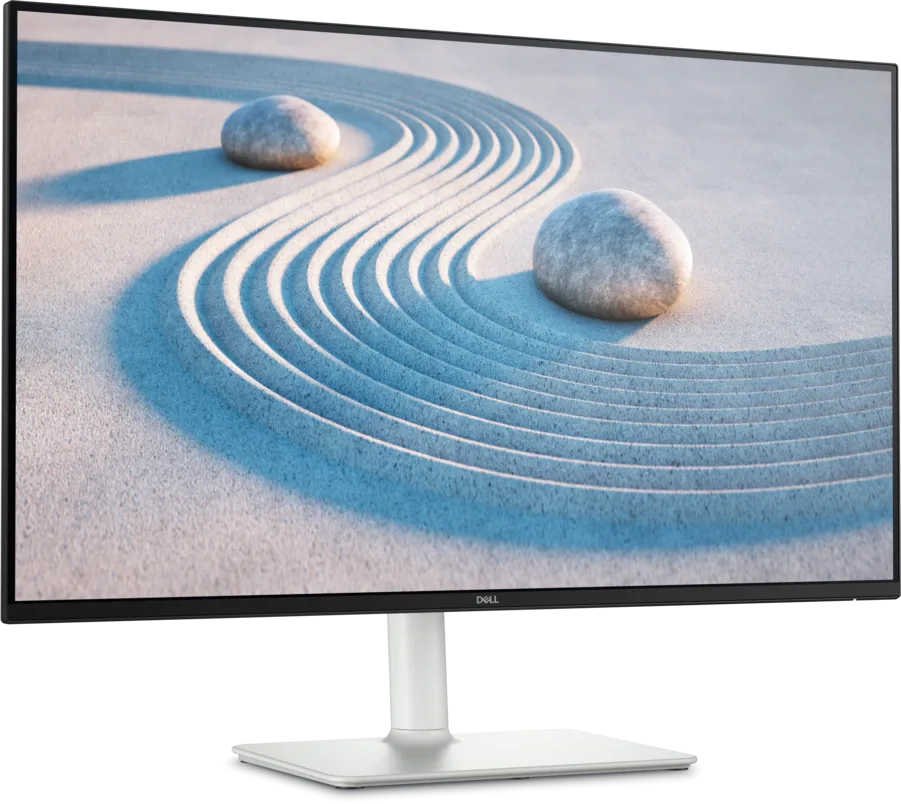
Research-based editorial score: 8.2/10. Exact model and verified specification: 27-inch 2560 × 1440 IPS; 100Hz; specified 99% sRGB; 350-nit rated brightness; two HDMI and one DisplayPort; ergonomic stand and integrated speakers.
What makes it worth considering
QHD resolution is a major step up from 1080p for spreadsheets and reading, while 100Hz scrolling and a fully adjustable stand make it unusually comfortable at an entry-level price. A monitor earns a recommendation only if those capabilities solve a daily problem; a larger number on a specification sheet is not automatically a visible improvement. Compare the screen’s physical size with your viewing distance, available desk depth and whether the included stand can position it at eye level.
Limitations you should know
No USB-C video, laptop charging or Ethernet dock. It cannot match 4K text sharpness or wide-gamut professional displays, and the built-in speakers are a convenience rather than an audio upgrade. Do not confuse S2725DS with similarly named S2725D, S2725HS or gaming variants; check exact port and stand specifications. These limitations matter more than a tenth of a point in our editorial score. We recommend checking both the exact product code and the retailer’s return policy, especially for dead pixels, backlight uniformity, USB-C negotiation and shipping damage.
Who should buy this exact monitor?
Students, home-office users and anyone replacing a basic 1080p screen without needing USB-C docking. If your work is mostly text and spreadsheets, prioritize font clarity, comfortable scaling and ports. If your work is color-critical, review independent calibration evidence and plan for profiling. A monitor that fits the actual workload will provide more value than a more expensive model chosen only for peak brightness or refresh rate.
How it compares with alternatives
Dell P2725QE for 4K, USB-C and Ethernet; ASUS PA279CRV if color-managed creative work is a priority. The key is to decide whether you need more pixels, a wider canvas, faster motion, stronger color management or a single-cable docking setup. Each choice involves a different cost and desk-space tradeoff.
Verification: Manufacturer’s exact-model product/specification page; independent testing or buying-context reference. The manufacturer source supports the listed hardware details; third-party evidence is not represented as our own hands-on testing.
Buying advice: how to choose a monitor for your desk
27-inch 1440p versus 27-inch 4K
A 27-inch QHD display (2560 × 1440) gives roughly 109 pixels per inch and is a useful improvement over 1080p. At 27 inches, 4K (3840 × 2160) increases that to roughly 163 ppi, making small text, charts and vector artwork sharper when your operating system scales the interface appropriately. Do not expect 4K to fit four times as many readable words on screen: most people use 125–200% scaling. If you sit far away or mostly use large fonts, the extra sharpness may be less valuable than better ergonomics or connectivity.
32-inch 4K versus 34-inch ultrawide
A 32-inch 4K 16:9 panel offers more total pixels and more vertical space than a 3440 × 1440 ultrawide. A 34-inch 21:9 display instead offers a naturally wide arrangement for timelines and side-by-side windows, often with no center bezel. Think about your actual window layout, desk width and whether you want one tall document or two broad applications. Ultrawide support can vary in older software, games and remote-desktop setups.
Is 60Hz enough for an office monitor?
For writing, static dashboards and color editing, 60Hz can be perfectly adequate. A 100–120Hz panel makes cursor movement and scrolling feel smoother, and may be more pleasant when switching windows all day. It does not by itself guarantee crisp fast motion: pixel response time and overdrive tuning matter. Independent testing found that even the Dell U3225QE’s 120Hz panel is not an ideal fast-action gaming screen, so avoid treating refresh rate as the whole performance story.
USB-C, Thunderbolt and charging wattage
USB-C is a connector shape, not a promise of video output. A compatible laptop must support DisplayPort Alt Mode or a supported Thunderbolt/USB4 video path. A monitor advertised with 90W or 140W power delivery can only provide the negotiated power if the charger, host and cable support it; workstation laptops may still require their original power brick under load. Thunderbolt monitors can offer faster hubs and daisy chaining, but host operating systems and chipset generations determine which features work. Verify Ethernet, KVM, display output and laptop-charging support separately.
IPS, IPS Black, OLED and HDR claims
Conventional IPS LCDs generally provide stable viewing angles and are practical for long hours of static documents. IPS Black panels advertise improved native contrast, but cannot reproduce OLED’s near-black pixel control. OLED can be stunning for cinema and gaming, yet users with static taskbars and spreadsheets should consider long-term image retention and warranty policies. A DisplayHDR 400 or 600 badge alone does not prove good local dimming, shadow detail or true HDR grading performance. For color-critical workflows, independent measurements and calibration matter more than a gamut percentage printed on a box.
Ergonomics and eye comfort
Look for height, tilt, swivel and pivot adjustments; a VESA mount is valuable if you use an arm. Position the upper part of the screen at a comfortable height, adjust brightness to the room and take periodic breaks. Low-blue-light modes and flicker claims may improve comfort for some users but are not medical guarantees. A bright glossy panel may cause more fatigue in a window-facing desk than a slightly dimmer screen with good reflection handling.
Budget and total ownership cost
Budget for a compatible video cable, monitor arm, dock or USB hub if not included. A cheaper monitor with no USB-C video may still be the best value for a desktop tower, whereas a laptop user may save money and desk clutter with integrated charging and Ethernet. Check retailer stock and warranty in your own country; manufacturer model families frequently contain region-specific suffixes and different accessory bundles.
Which computer monitor should you buy?
Choose the Dell U3225QE if you want one excellent all-purpose work monitor and will use its 32-inch 4K canvas, 120Hz desktop and Thunderbolt dock. Choose the Dell P2725QE if a compact 27-inch 4K office screen is enough. Choose the ASUS PA279CRV for a value-focused design workflow, or the BenQ PD2730S when high-density 5K detail matters. Choose the LG 34WQ75C-B for a wide timeline and multitasking layout, the HP 727pu for Thunderbolt workstation docking, the EIZO EV2740X for a service-focused long-hours office setup, or the Dell S2725DS for a sensible QHD budget upgrade.
Frequently asked questions
What monitor size is best for working from home?
For most desks, 27 inches is a comfortable starting point. A 32-inch 4K screen is useful if you regularly keep multiple documents open and can sit far enough away to see the edges without constant head movement. Measure the desk before deciding.
Is a 4K monitor worth buying in 2026?
Yes for sharp text, dense spreadsheets and creative work, particularly at 27–32 inches. If you mainly watch 1080p video or have a strict budget, a good 1440p monitor may be better value.
Do I need a monitor with USB-C?
Only if you want video and perhaps laptop charging through one cable. A desktop PC connected via HDMI or DisplayPort may not benefit. Check whether the USB-C port supports actual display input rather than only data or charging.
Should I buy OLED for office work?
OLED’s contrast is impressive, but static office UI and high daily usage warrant attention to burn-in protection, text rendering and warranty. A quality IPS or IPS Black monitor is often a simpler long-term productivity choice.
Can one monitor connect to two computers?
Yes, if it has multiple video inputs; a built-in KVM can also share a keyboard and mouse. KVM functionality varies by model and may require an additional upstream USB connection.
Does a higher refresh rate reduce eye strain?
Some users prefer smoother scrolling, but refresh rate is not a proven treatment for eye strain. Screen brightness, reflections, posture, text scaling and breaks are also important.
Related AsumeTech reading
If your monitor will connect to a notebook, our 2026 laptop buying guide can help you choose a host with suitable ports and performance. For a desktop workstation, our report on the M5 Mac Studio’s Thunderbolt connectivity provides context for checking the computer side of a high-resolution display setup. Both are confirmed published AsumeTech articles.
