
Managing Apple CarPlay auto-connections requires different approaches depending on whether you want to silence the feature for a specific vehicle, stop it from launching entirely, or simply prevent music from playing automatically upon startup. Recent iOS updates have streamlined this process, allowing for granular control within the iPhone’s native settings.
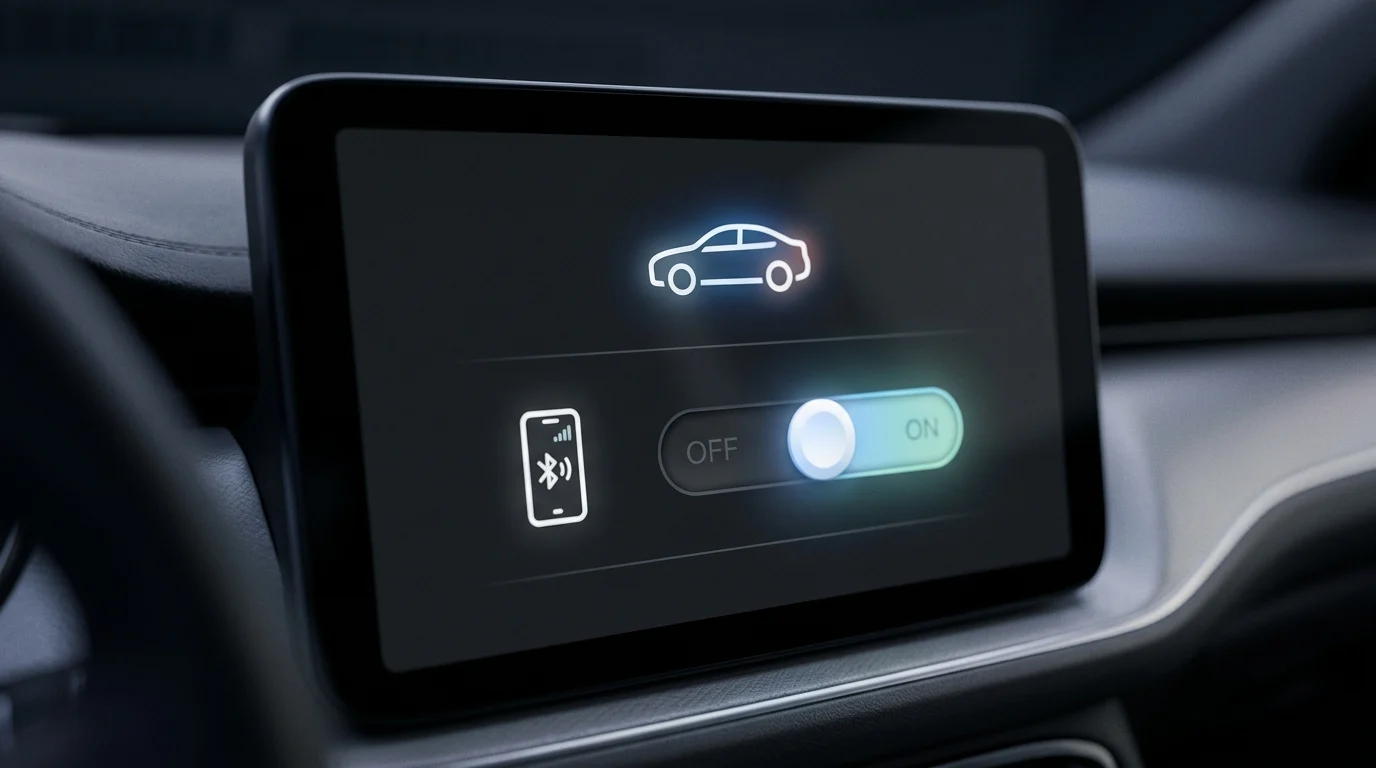
The most direct way to stop a specific car from auto-launching CarPlay without losing the connection profile is through the CarPlay settings menu. By navigating to Settings > General > CarPlay and selecting the specific vehicle, users can toggle the CarPlay switch to the “Off” position. This method is effective for households with multiple vehicles where a driver may only want the interface to appear in one car but not the other.
System-Wide Restrictions and Rental Cars
For users who want to prevent CarPlay from ever launching—such as when charging a phone in a rental vehicle or a friend’s car—iOS provides a system-wide block through Screen Time. This is the most restrictive method and ensures the phone will not initiate a CarPlay handshake even when connected via USB.
To enable this block, navigate to Settings > Screen Time > Content & Privacy Restrictions. After turning on “Content & Privacy Restrictions,” select “Allowed Apps” and toggle “CarPlay” to the off position. This prevents the CarPlay interface from appearing on any dashboard until the restriction is manually removed.
Managing Wireless Handshakes
Wireless CarPlay relies on a two-part connection process. According to Apple Support, the system uses Bluetooth for the initial discovery and “handshake” between the phone and the vehicle, but then transitions to a Wi-Fi connection for the actual data transmission and interface projection.
If you are trying to temporarily stop a wireless connection, simply turning off Bluetooth or Wi-Fi individually may not be enough to terminate an active session, as the system may attempt to reconnect as long as both radios remain active in the background. To prevent a wireless auto-launch, both must be disabled, or the car-specific toggle must be switched off in the Settings menu.
Charging Without Launching
Many drivers find CarPlay frustrating when they only intend to use the vehicle’s USB port for charging. While the Screen Time method works, many vehicle infotainment systems also include internal settings to manage this behavior. In many head units, this is found under “Smartphone Projection” or “USB Auto-Launch” settings. Disabling these options on the vehicle’s side will allow the phone to draw power without triggering the CarPlay interface.
Addressing the Autoplay Music Bug
One of the primary reasons users seek to disconnect CarPlay is the “autoplay” issue, where music or podcasts begin playing the moment the phone connects. If the goal is to keep the navigation benefits of CarPlay but stop the unwanted audio, Car Tech Studio suggests using the iOS Shortcuts app to create a simple automation.
By setting an automation triggered when “CarPlay Connects,” users can add a “Pause Playback” command. This allows the system to launch for navigation and calls while immediately silencing any media that attempts to play automatically. This provides a software-based solution that preserves the utility of the system without the irritation of unexpected audio.
