
The release of iOS 26 introduced a fundamental shift in the CarPlay interface, moving away from a static grid of icons toward a customizable ecosystem of widgets. With the rollout of iOS 27 in September 2026, Apple expanded this system, allowing drivers to surface real-time data from third-party applications that do not necessarily have a dedicated CarPlay app interface.
These widgets reside on a dedicated “Widget Pane” located to the left of the home screen, distinct from the traditional three-panel Dashboard view. This layer is designed to provide glanceable information—such as weather radar, security alerts, or package tracking—without requiring the user to navigate through multiple menus.
How to Configure CarPlay Widgets
For safety and distraction reduction, Apple does not allow widget customization directly through the vehicle’s infotainment screen. All adjustments must be performed on the paired iPhone while the vehicle is parked.
To add or reorder widgets, navigate to Settings > General > CarPlay on your iPhone. Select your specific vehicle from the list and tap the Widgets menu. From this interface, you can:
- Add Widgets: Tap the “+” icon to browse compatible apps.
- Create Stacks: Drag widgets on top of one another to create a “stack” of up to five different items.
- Reorder: Use the list view to prioritize which stacks or individual widgets appear first.
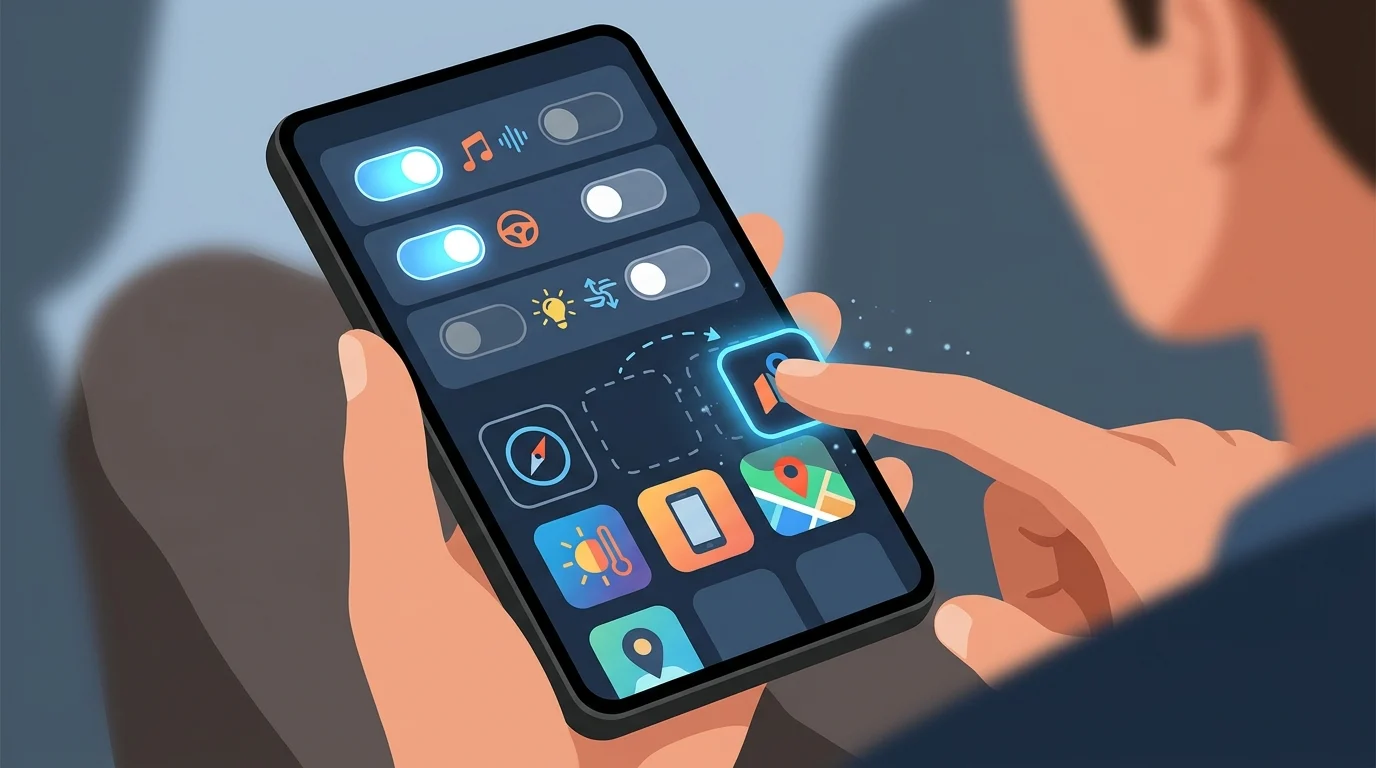
According to Apple Support, the number of widget stacks visible simultaneously is determined by the vehicle’s hardware. While smaller infotainment displays may only support a single stack, larger screens (typically 8 inches or wider) can display up to three stacks side-by-side.
Smart Rotate and Automation
To minimize the need for manual scrolling while driving, the widget system utilizes “Smart Rotate” and “Widget Suggestions.” These features use on-device intelligence to analyze the time of day, your current location, and your calendar to surface the most relevant information. For example, a widget showing a garage door controller may automatically move to the top of the stack as you approach your home geofence.
The system also integrates Live Activities, which were further refined in the iOS 27 update. These allow for real-time updates—such as sports scores or food delivery progress—to appear within the widget pane or as persistent elements at the bottom of the screen.
Expanding the App Ecosystem
The primary advantage of the widget pane is its ability to support “glance-only” data from apps that traditionally lacked CarPlay support. Third-party developers have begun utilizing this to bridge the gap between the phone and the car:
Weather and Navigation: Apps like Windy can display live weather radar directly in a widget, providing more granular environmental data than standard mapping services.
Home Security: Ring and other security platforms provide snapshots or status alerts for home sensors.
Logistics: Amazon and various courier services use widgets to show the number of stops remaining for an expected delivery.
While iOS 26 established the framework for these tools, the subsequent iOS 27 update focused on rendering performance, ensuring that widgets update with minimal latency even on older infotainment hardware. Developers must specifically opt into the CarPlay Widget or Live Activity API for their apps to appear in the customization menu.
