
As hardware manufacturers continue to integrate dedicated AI buttons into laptop layouts, Windows 11 has introduced native controls to help users reclaim that keyboard real estate. As of late 2026, Microsoft has streamlined the process for reconfiguring the hardware Copilot key, which replaced the Right Ctrl key on many devices released over the last two years.
The latest updates to Windows 11 now include a specific toggle within the system settings to address the dedicated Copilot hardware. By navigating to Settings > Bluetooth & devices > Keyboard, users can choose how the physical key behaves. The system currently supports reassigning the key to act as a traditional Right Ctrl key or a Context Menu key, or it can be disabled entirely by selecting “Do nothing.”
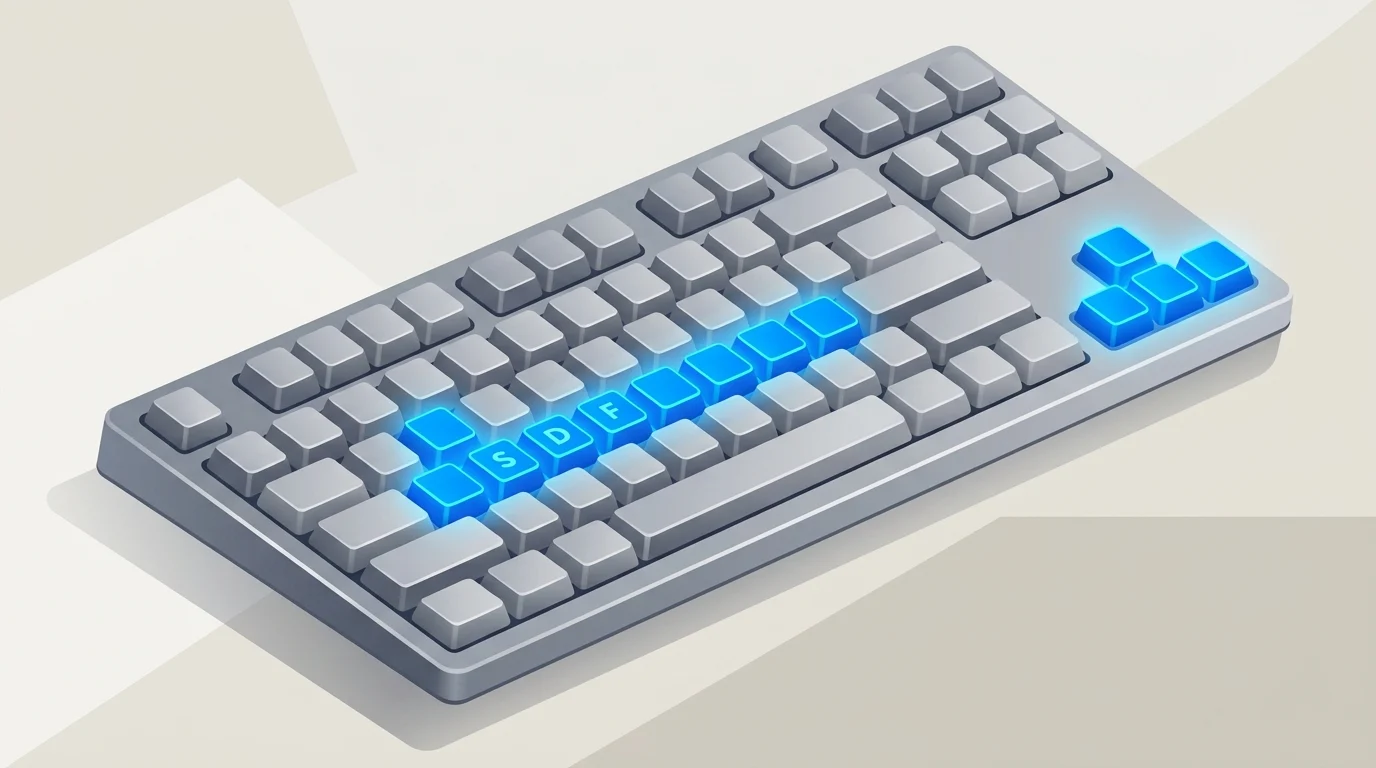
For users seeking more comprehensive customization beyond a single AI key, Microsoft released PowerToys v0.101.2282.0 on September 5, 2026. This version of the utility suite remains the primary recommendation for advanced users who need to remap standard keys like Caps Lock, Scroll Lock, or Insert into more productive shortcuts. The Keyboard Manager utility within PowerToys allows for “remap key” and “remap shortcut” configurations that can be toggled on or off without a system reboot.
Software vs. Registry Remapping
While PowerToys offers a user-friendly interface for complex remapping, it requires the application to remain running in the background to function. For those looking to minimize background RAM usage or establish permanent changes that persist even on the Windows login screen, registry-level tools like SharpKeys are often preferred. SharpKeys does not “run” constantly; instead, it writes a “Scancode Map” directly to the Windows Registry, telling the operating system to interpret one key press as another at a kernel level.
This distinction is particularly important for users of “60%” or “75%” keyboards, where physical space is limited and certain functions (like Home, End, or Print Screen) are often buried under layers of function (Fn) keys. Remapping an unused key like Caps Lock to act as an additional Escape or Control key can significantly reduce hand strain during long typing sessions.
Modernizing “Dead” Keys
The reclamation of the keyboard also extends to legacy keys that have lost their original purpose in modern software. Many productivity setups now repurpose the following keys to serve more modern functions:
- Caps Lock: Frequently remapped to Escape (favored by developers) or a dedicated “Mute Microphone” toggle.
- Insert: Often remapped to Print Screen or a dedicated key for launching a specific snippet tool.
- Scroll Lock and Pause/Break: Commonly reassigned to media controls like Play/Pause or Next Track.
According to Microsoft Support, these native and third-party remapping options are designed to ensure that keyboard hardware remains flexible as software-driven features like Copilot evolve. While the physical legends on the keycaps cannot change, these tools allow the underlying hardware to better match the specific workflow of the user.
