
With the release of iOS 26 and the upcoming launch of iOS 27 in September 2026, Apple CarPlay has evolved from a basic iPhone mirror into a customizable command center. These updates introduce more control over how the interface scales to different vehicle screens and how information is layered on the dashboard.
To move beyond the default configuration, users can leverage several high-value settings designed to optimize visibility, accessibility, and AI-driven assistance.
Optimizing the Interface with Smart Display Zoom
One of the most significant additions in iOS 26 is the “Smart Display Zoom” toggle. As vehicle manufacturers move toward non-standard screen ratios—including ultra-wide panoramic displays and vertical tablets—CarPlay often struggles with empty space or oversized icons. Smart Display Zoom allows the system to analyze the specific dimensions of the car’s screen and adjust the UI density accordingly.
By enabling this in the CarPlay Settings app on the vehicle’s head unit, users can ensure that text remains legible without sacrificing the number of apps visible on the home screen. This feature is particularly useful for drivers of newer EVs and luxury sedans that feature unconventional dashboard geometries.
Configuring the Three-Stack Widget Layer
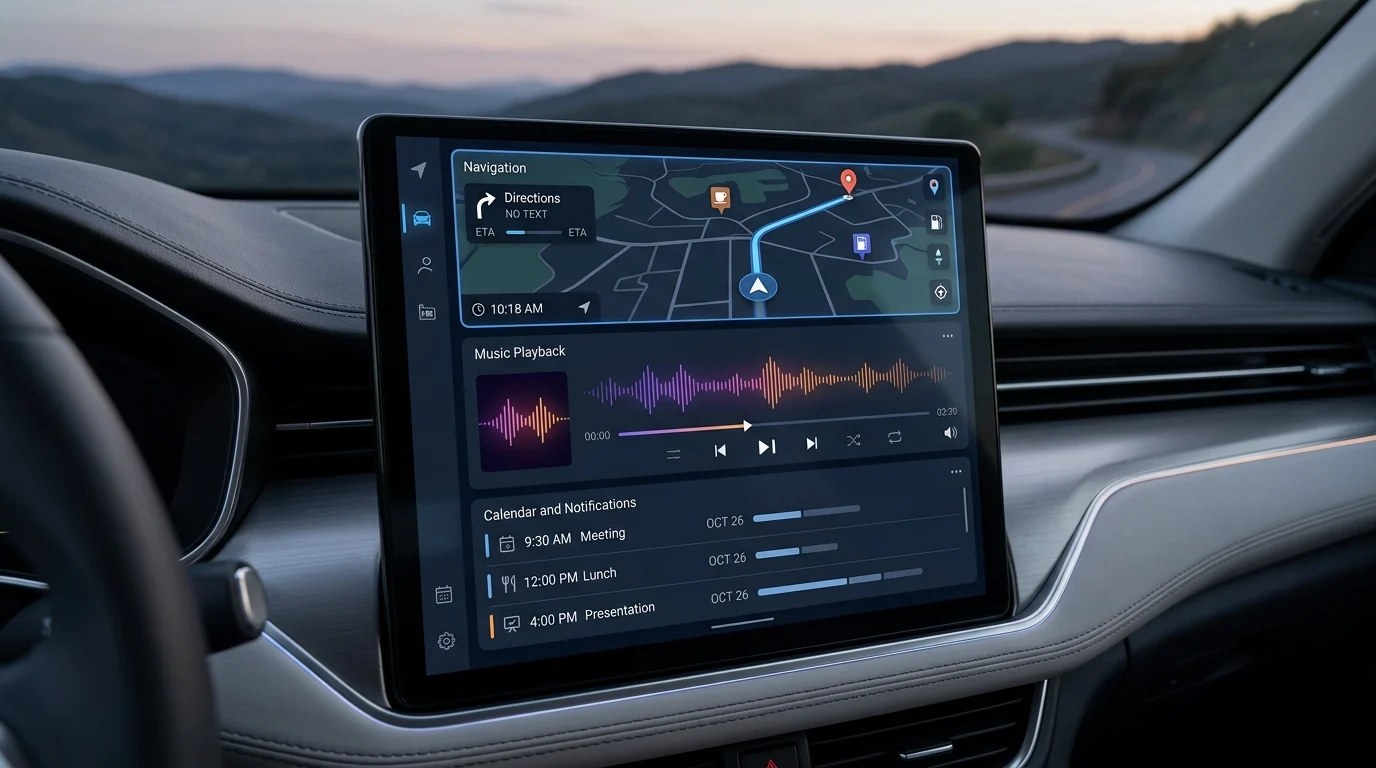
The CarPlay Home Screen has shifted away from a fixed grid to a more modular “Liquid Glass” aesthetic. Users can now manage up to three distinct widget stacks on the left side of the dashboard view. These stacks allow for a layered approach to information, such as simultaneous views of navigation, “Now Playing” media, and HomeKit triggers.
Managing App Layout and Siri AI
While many settings are found in the car, the core organization of the interface still resides on the paired iPhone. To rearrange or remove app icons, navigate to Settings > General > CarPlay, select your vehicle, and tap Customize. This remains the process for rearranging or removing app icons from the interface.
Looking toward the iOS 27 rollout this month, a new “Siri AI” setting will become available. This update allows the assistant to scan incoming messages and emails to provide context-aware suggestions. For example, if a contact emails a meeting location while you are driving, Siri AI can automatically offer to route the vehicle to that destination without a manual voice command. Users concerned with privacy can toggle these scanning permissions within the Siri & Search settings on their iPhone.
Safety and Accessibility Enhancements
For drivers who require high-contrast visuals or auditory assistance, the Accessibility menu within CarPlay has been significantly expanded. iOS 26 and 27 support “Sound Recognition,” a feature that uses the car’s or iPhone’s microphones to listen for specific environmental cues. When the system detects sirens, car horns, or even a crying baby, it displays a visual notification on the CarPlay screen.
Additionally, users can now enable “Bold Text” specifically for the CarPlay interface, which improves readability against the glare of a daytime cabin. These settings are found under Settings > Accessibility on the CarPlay display and do not affect the text settings on the iPhone itself.
CarPlay Ultra and Multi-Screen Support
For owners of supported high-end vehicles, such as current Aston Martin models, the “CarPlay Ultra” (next-generation CarPlay) settings allow for integration across the entire instrument cluster. While this version of the software is currently limited to Aston Martin as of late 2026, these settings allow drivers to choose different “skins” for their digital gauges, effectively replacing the manufacturer’s speedometer and tachometer design with Apple-curated aesthetics.
